

AI voice tools are entering live Zoom conversations alongside people. On Windows, they hear only one microphone, so other voices on a Zoom call are missed. A simple hardware setup with a small mixer combines voices into one signal, allowing the AI to hear and respond to everyone.
For some time, John Hovell and I (David Gurteen) have wanted to bring AI into our Zoom conversations so it can participate properly, listening to both of us and responding in the flow of the conversation.
This short video shows or first test of the setup. It uses a small audio mixer connected to a Windows laptop, and the AI can hear both voices on the call and speak back into the conversation.
We had a poor internet connection, and the sound levels are not well-balanced, but the video proves the concept. We will be experimenting more over the coming weeks (Today’s date, 8th May 2026).
You can find full technical details below.
Credit: I would like to thank my good friend Bruce Lloyd for creating1 this NotebookLM video.
The objective
We can now have quite natural voice conversations with generative AI systems such as ChatGPT or Claude. We can talk to them one-to-one on our laptops or mobile phones, almost as if we were speaking to another person.
What is far less straightforward is bringing AI into a live group conversation, especially in a Zoom meeting. You can share your screen and open ChatGPT or Claude, but there is a practical problem. The AI can usually only hear the microphone of the person sharing the screen. It cannot hear the other people in the room or on the call.
The challenge, then, is how to make the AI a genuine participant in the conversation, able to hear everyone, respond naturally, and become part of the flow of discussion rather than just something sitting on a shared screen.
This small technical hack solves that problem surprisingly well. Using a simple audio mixer setup, you can create a live conversational environment where the AI can hear all participants, and everyone can hear the AI.
The result is that the AI becomes part of the room, not as a replacement for human conversation, but as another conversational participant.
An important note upfront
This guide is based on doing this on a Windows machine.
On a Mac, it is often possible to combine audio sources in software and present them as a single input device. On Windows, that approach is unreliable and difficult to maintain.
What follows is a simple, robust hardware solution that works consistently.
Before you begin
These instructions may seem a little complicated at first. In practice, if you follow them carefully and take it step by step, the setup is not as difficult as it looks.
When working this out, ChatGPT was very helpful in guiding the process and resolving issues along the way.
If you run into problems, it can usually help you diagnose the issue and patiently walk you through a solution.
The core problem
On a normal Windows setup:
- Your microphone feeds your voice into the AI
- Zoom lets you hear the other person
But the AI only listens to a single microphone input. It does not hear the other person speaking through Zoom. So, although the other person is present for you, they are not present for the AI.
The solution
The solution is to combine all voices into a single audio signal before it reaches the computer. That combined signal is then presented to the AI as a single microphone. The simplest reliable way to do this is with a small USB mixer.
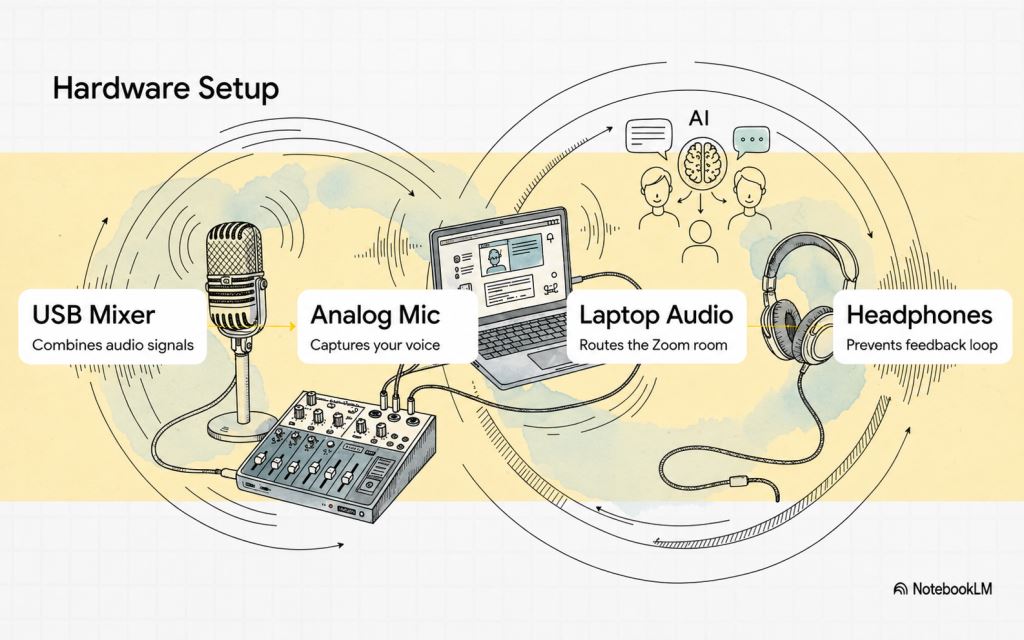
What you need
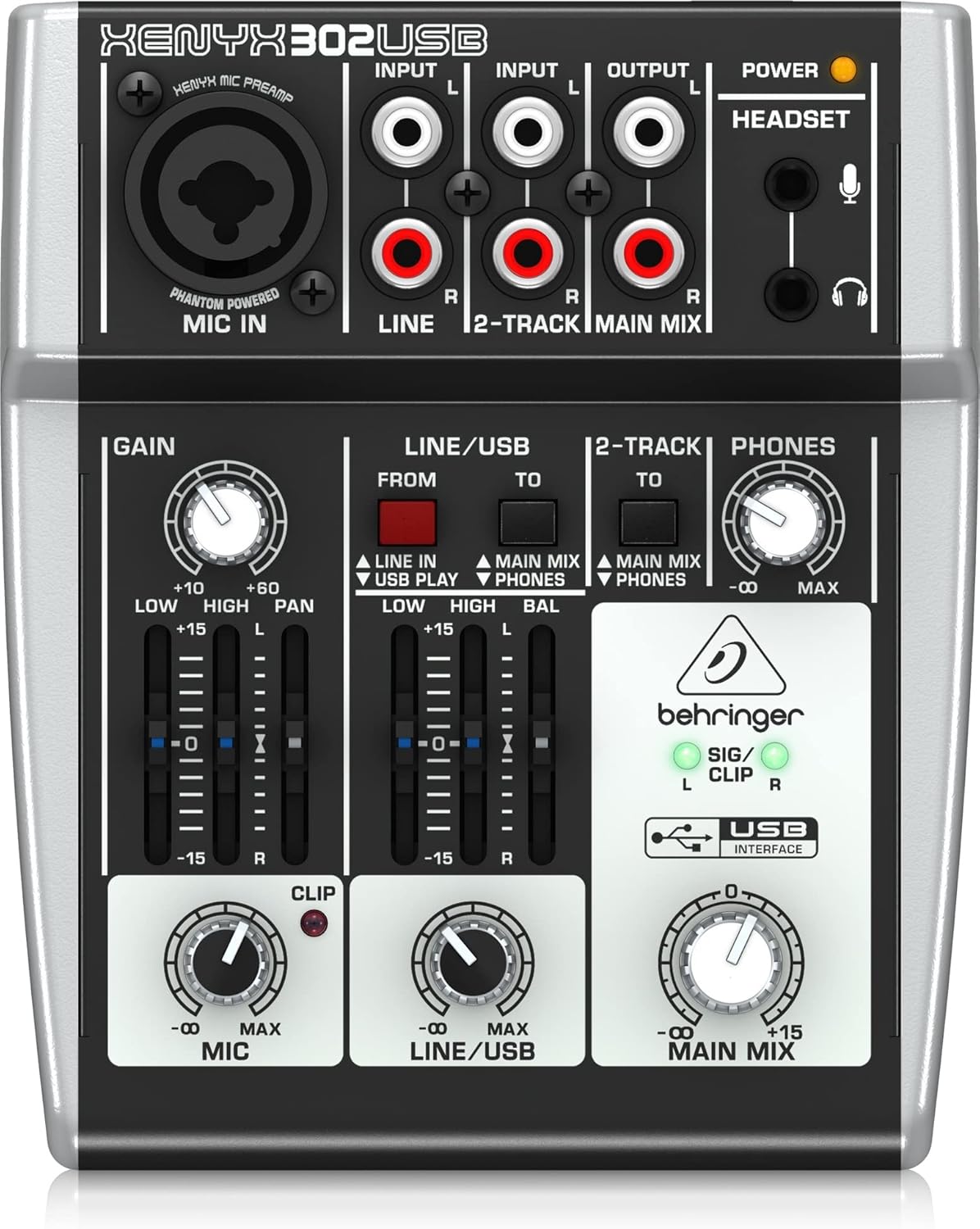
- USB mixer: Behringer Xenyx 302USB mixer
- Analog microphone: Yctze Gooseneck Podium Microphone or similar
- 3.5mm to RCA cable: Amazon Basics 3.5mm to 2x RCA audio cable or similar
- Wired headphones: Amazon Basics wired computer headset or similar
Approximate cost
- Mixer: around £40 to £45
- Microphone: around £15 to £20
- Cable: around £3 to £6
- Headphones: around £15 to £20
Overall, this is roughly an £80 setup.
Why the microphone must be analog
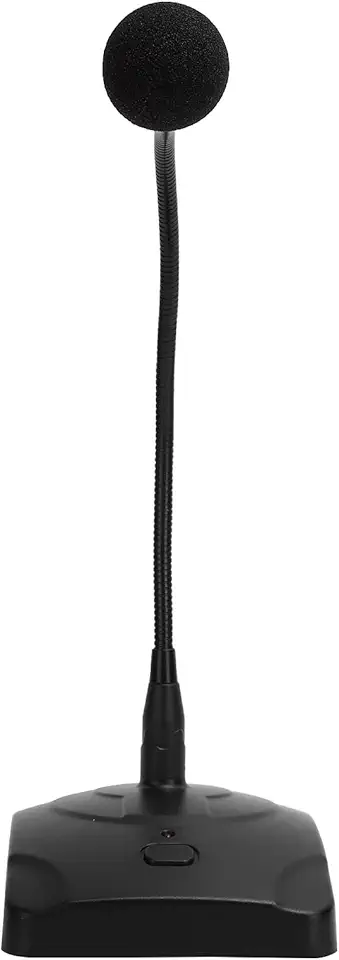 A USB microphone will not work for this setup. A USB microphone sends its signal directly to the computer and cannot be routed through the mixer. An analog microphone plugs into the mixer and becomes part of the combined audio signal.
Why headphones are needed
You need headphones to avoid feedback. If you use speakers, sound from Zoom or the AI can be picked up by the microphone and fed back into the system.
You can use a headset, but do not use the headset microphone. Use only the headphones. Your speaking microphone should be the analog microphone plugged into the mixer.
Physical setup
- Connect the mixer to your laptop using the USB cable supplied with the mixer. This single cable both powers the mixer and carries the audio connection.
- Plug the microphone into the mixer MIC IN socket (top left)
- Plug your headphones into the PHONES socket on the mixer (top right)
- Connect your laptop’s headphone output to the mixer LINE IN (top left) using the 3.5mm-to-RCA cable.
At this point, the mixer becomes the centre of the system.
Windows settings
In Windows Sound Settings:
- Input, microphone → USB Audio Codec
- Output, speakers → USB Audio Codec
Zoom settings
In Zoom:
- Microphone → USB Audio Codec
- Speaker → USB Audio Codec
Browser settings for ChatGPT or Claude
For this setup, you only need to change the microphone for the AI page, not your whole system. When you open ChatGPT or Claude in your browser:
- Click the padlock icon to the left of the URL
- Open Site settings
- Find Microphone
- Set it to USB Audio Codec
Then:
- Refresh the page
- Start voice mode
Why this approach is better
This keeps things simple:
- You do not change your global browser settings
- Other websites and apps continue using your normal microphone
- When you unplug the mixer, everything reverts automatically
Quick check
If the setting is correct:
- The AI responds when you speak
- It also responds when others speak through Zoom
If not, it usually means the page has not been refreshed, or the wrong microphone is still selected.
Mixer settings
Set the mixer controls approximately as follows:
- GAIN (top left): halfway
- MIC (bottom left): halfway
- LINE/USB (bottom middle): halfway
- MAIN MIX (bottom right): halfway
- PHONES (top right): adjust for comfort
Make sure the mixer is routing computer audio into the mix. On the Behringer 302USB, this means the small red LINE/USB routing button is pressed in.
Testing sequence
Playback
Play a YouTube video. You should hear it through the headphones.
Microphone
Speak into the microphone. You should hear yourself.
AI
Start voice mode in ChatGPT or Claude and speak. It should respond.
Zoom
Start a Zoom call. When the other person speaks, the AI should now hear them as well.
Using Zoom with the AI on a shared screen
To bring the AI into a live conversation:
- Open ChatGPT or Claude in a browser window.
- Start a Zoom call with the other person or group.
- Click Share Screen in Zoom.
- Select the browser window with the AI.
- Tick Share Sound before sharing.
- Start voice mode in the AI.
Everyone in the Zoom call can now see and hear the AI, and the AI can hear both you and the other participants.
A practical note on AI behaviour
Current voice AIs are not very good at keeping quiet. They may interrupt or respond when you do not want them to. In practice, you may need to stop or mute voice mode when you want the human conversation to continue without interruption.
What success looks like
- you speak, and the AI hears you
- others speak, and the AI hears them
- the AI responds, and everyone hears it
At that point, the AI is genuinely part of the shared conversation.
Final note on the setup
This setup is not obvious and may take some adjustment. If something does not work, check each step carefully. If you get stuck, ChatGPT can help diagnose where the signal is not flowing correctly.
What the AI does not yet receive
At present, an AI in the room receives only a partial version of the conversation. In my current setup, it gets the spoken words as text. It does not hear the actual human voice, with its tone, cadence, hesitation, emphasis, humour, discomfort, or warmth.
Nor does it see the facial expressions, gestures, posture, glances, pauses, or silences through which people often communicate what they really mean. These are not minor details. They are often where much of the human meaning of a conversation lives.
This may change. Future systems may be able to hear tone of voice, read facial expressions, and interpret other social signals. But for now, the AI is working mainly with the script of the conversation, not the full human encounter.
This matters because the AI may respond as if it understands the whole conversation when, in fact, it is working with a reduced version of it. It can still be useful, but we should not mistake its contribution for human presence, judgement, or sensitivity.
What does this mean for conversation?
Bringing AI into a Zoom conversation is more than a technical experiment. Once AI can “hear” and respond to everyone in the room, a deeper question arises: what does this mean for how we think, reflect, and make sense together?

Closing Reflection
Posts that link to this post
- Rethinking Conversation in the Age of AI What changes when an AI joins the dialogue, and what might we gain?
- The Risks and Challenges of Bringing AI Into Conversation How AI can affect trust, judgement, power, and human dialogue
- When AI Joins the Conversation Exploring how artificial intelligence could take part in real time human discussions
If you enjoy my work and find it valuable, please consider giving me a little support. Your donation will help cover some of my website hosting expenses.
Make a donation